
If you're looking to up your searching game with some advanced searching, you're in the right place!
Last Revised: 2025-07-31
-
Step 1: Fitting your research question into a framework (PICO)
While typing your research question into Google can yield results, many databases will provide much more tailored and relevant results if you know how to use them correctly.
First, you must have a defined research question using either PICO, or other effective frameworks. While many clinical research questions in veterinary medicine will fit nicely into PICO:
P - Patient/Population/Problem
I - Intervention
C - Comparison
O - Outcome
Non-clincal questions may work better with other acronyms. Check out this list for other frameworks options.
Once you have a defined research question that fits into a framework you can use this to inform your search strategy.
Research question: Does gabapentin help ease an adult cat's anxiety for visit to a veterinarian.
P - adult cat with anxiety
I - gabapentin
C - no comparison
O - less anxiety
-
Step 2: Using your PICO to inform your search strategy
Research question: Does gabapentin help ease an adult cat's anxiety for visit to a veterinarian.
P - adult cat with anxiety
I - gabapentin
C - no comparison
O - less anxiety
Looking at your PICO, you will pick out the key concepts/terms to your question. In this case, the key concepts are: adult cat, anxiety, and gabapentin.
note: The comparison is not included in the search since it is just comparing to status quo. If the comparison was another drug, or different intervention then it would be a key concept as well. The outcome is not often included in your search because we do not want to bias the search results by including a favourable or unfavourable term as a search concept.
Now that you have key concepts chosen, we want to brainstorm synonyms for each one if possible. Try to think of both common language and scientific terms, generic and brand-name medications, and other synonyms for the concepts.
adult cat anxiety gabapentin - cat
- cats
- feline
- felid
- anxious
- scared
- frightened
- nervous
- horizant
- neurontin
- gralise
Next, you will use the synonyms and key concepts to create your search.
-
Step 3: Searching with boolean terms
Using your synonyms and key concepts you will now search in the database of your choice using boolean terms to combine them in a way the database will understand.
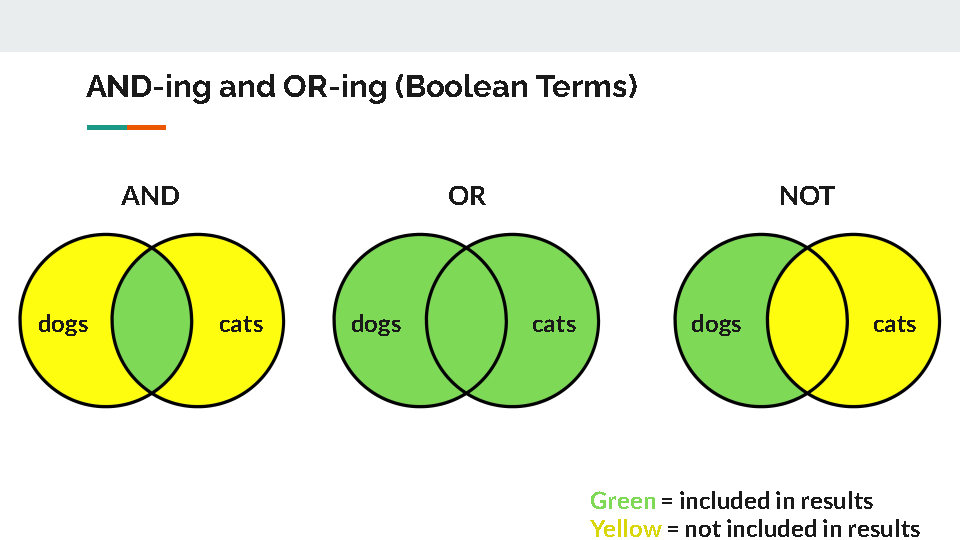
Each synonym within one key concept will be combined with OR, and each concept group of synonyms will be combined with AND.
Note: Use NOT sparingly as you can inadvertently exclude relevant content.
Note: Not all databases use booleans. Some even use altered booleans such as Scopus requiring AND NOT instead of NOT. Not all database need uppercase boolean terms.
You search will look something like this:
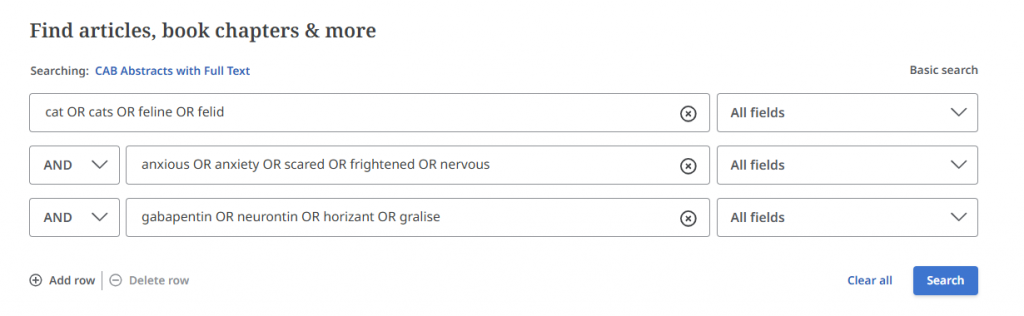
If the database you are using does not provide multiple boxes, you will need to surround each keyword group of synonyms with brackets, and put ANDs in between. ex:
(cat OR cats OR feline OR felid) AND (anxious OR anxiety OR scared OR frightened OR nervous) AND (gabapentin OR neurontin OR horizant OR gralise)
-
Step 4: Tips and Tricks - wildcards and phrase searching
Going forward with the search above is a good start, however, you may wish to use these tips and tricks to try and refine your search.
Note: While many of these work in most databases, not all databases will allow the use of these, or will use the symbols differently. This example is for EBSCO hosted databases.
Phrase searching "" - if you have key concept or synonym that is more than one word you may want to use phrase searching so the results only show those words together in the exact order you wrote them in ex: "graduate students" or " quality of life"
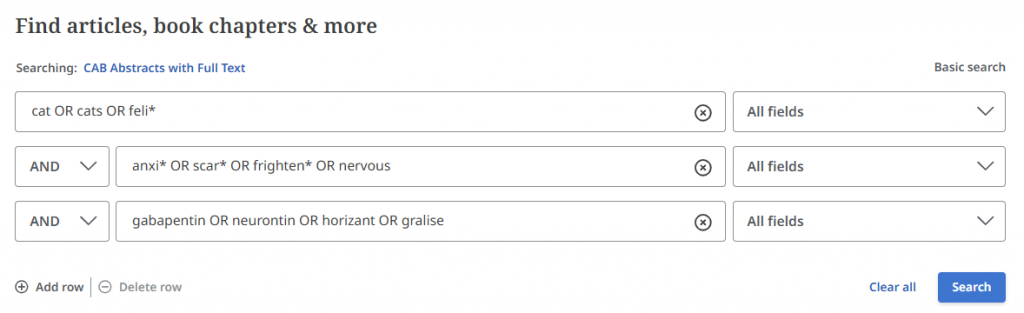
Truncation * - use the * to indicate you want the database to fill in the rest of the end of a word ex: anxi* will include 'anxious' 'anxiety' 'anxiousness' etc. Be cautious of what other terms might get pulled up if you use too few characters.
Wildcard # - use the # to indicate a letter may or may not go there. ex: p#ediatric will include pediatric or paediatric. Note: in some databases the * works in this way
Wildcard ? - use the ? to indicate there could be any letter within a word switched out ex: standardi?ed will include standardized and standardised
In some databases you can use multiple of these symbols in one word or phrase. Make sure the database uses the wildcards the way you think when you're doing a search! You can find them by googling the name of the database and wildcards.
Here is the previous search altered to include these tips if necessary:
-
Step 4.1: Tips and Tricks - proximity searching
Proximity searching allows you to be more specific than phrase searching.
Note: proximity searching can vary widely from databases to database. This example will follow EBSCO interface databases. For example, Pubmed has a very different proximity search.
There are two types of proximity searching: near and within.
For EBSCO, near allows for two words to be close proximity to each other determined by the number accompanying it. Thw words can be found in any order. ex: graduate N3 students allows for those two words to be within 3 words of each other.
Within works the same except the order of the words matter. ex: graduate W3 students would may sure that even with up to three words inbetween them they would still be found with 'graduate' first and 'students' after.
In the example, there isn't a need for proximity searching currently.
-
Step 5: fields and filters
Prior to searching, you may note "field" options in a database search. Looking at the current search example:
"all fields" to the right of each keyword box allows you to specify where you want to find those words. Options may include: title, abstract, keywords, author, etc.
Tip: if you want to search your full search only title and abstract, you'll have to not use the separately provided keyword boxes and combine them manually with paratheses and ANDs. Then put one copy fo your search in the first box provided, change the first drop down to "title" and put another copy in the second box and change the drop down to "abstract" Importantly. You will need to change the drop down boolean to OR so it will search either title or the abstract (unless you want the terms in both). ex:
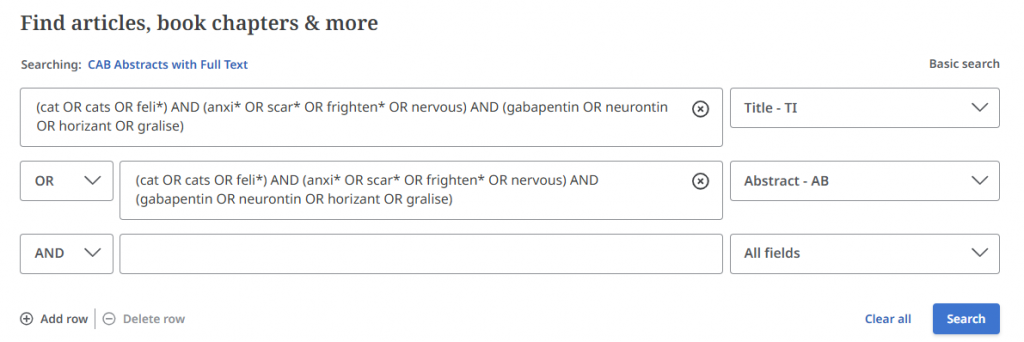
One you have entered a search and clicked the "search button" you will often find many filters to use. Popular ones include: language, peer-reviewed only, date/time period, source type, etc. Date can sometimes be important in the health sciences as you can be looking for the latest research, however, veterinary medicine does not move as fast as human medicine and some sometimes date ranges can be overly limiting for a niche topic.
-
Step 6: try, try again!
Searching is an iterative process. Most often, especially if you are doing advanced searching for a topic, you will need to try multiple searches and use what you find in your searches to inform how you alter them to find the content you need. Continue trying new techniques and as always, reach out to your liaison librarian if you need support!
-
Search hedges/filters
For systematic/scoping reviews and other advanced searching, since librarians put a lot of time and effort into crafting extensive searches, they will sometimes publish or post their search strategies for others to use. These are called search hedges/filters.
Note: your mileage may vary. Search hedges/filters are not always peer-reviewed or verified as being effective or sensitive. Use you best judgement on if a search hedge/filter works for you!
Pubmed:
The InterTASC Information Specialists' Sub-Group Search Filter Resource